
Visual & Art Assets
PNG vs SVG: which file fits your project?
Choose PNG or SVG for your project. Compare raster pixels, scalable shapes, transparency, editing and a measured example from our own brand assets.
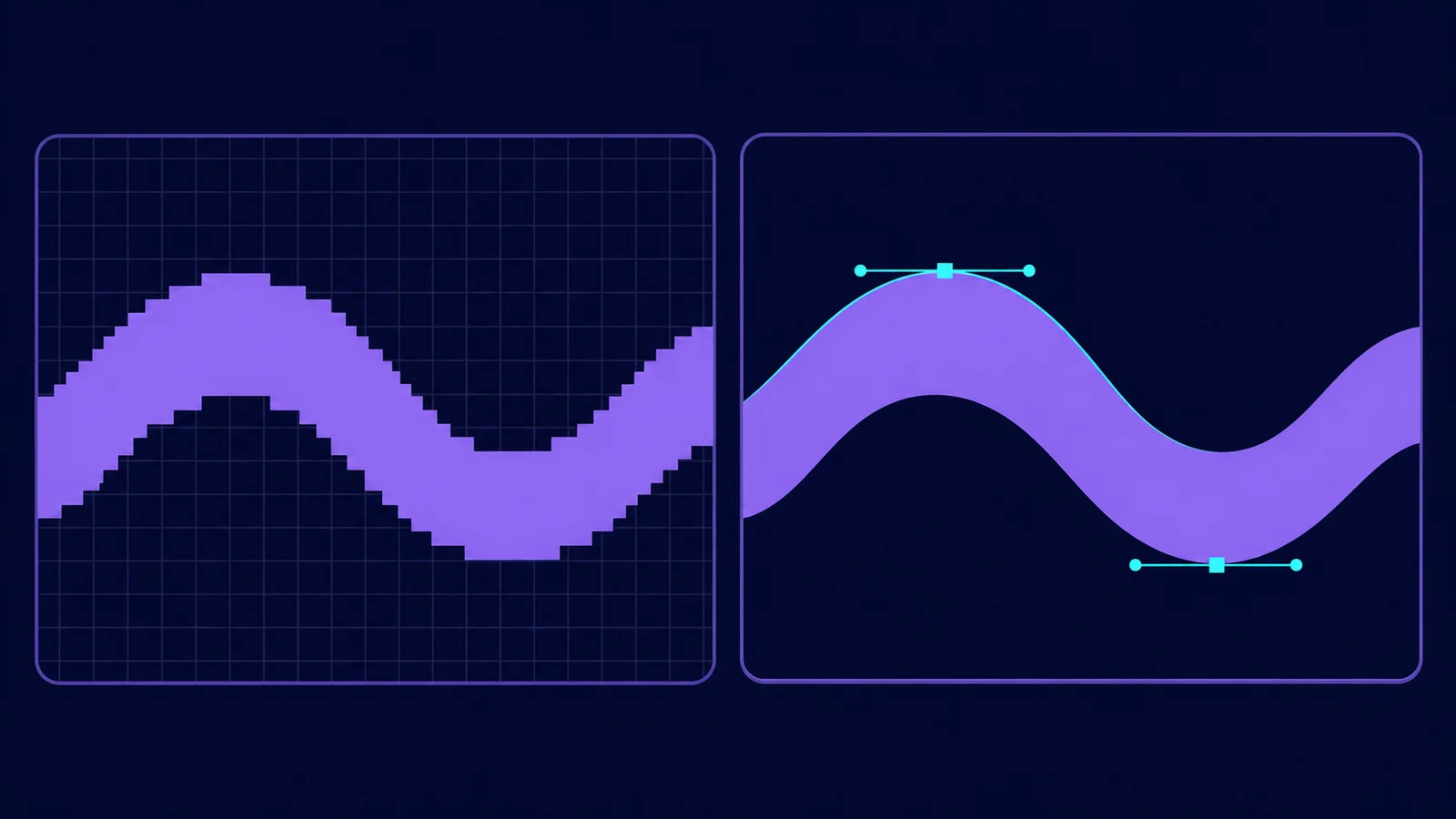
Match the format to the task
Choose PNG when you need a pixel-based image at a known size. Choose SVG when your artwork consists of shapes or paths that need to scale and your destination accepts SVG. Check the actual file and your editor before choosing: SVG can contain raster images, and either format can produce an opaque result.
| Your task | What to inspect |
|---|---|
| Place a photograph or other pixel-based artwork | A PNG's pixel dimensions and appearance at the intended size |
| Scale a logo, icon or geometric design | An SVG's actual shapes and paths, plus your editor's SVG support |
| Let another layer show through | The image's actual transparency on a contrasting background |
| Edit individual elements | The elements available after import into your chosen editor |
| Supply a file to a particular platform | That platform's accepted formats, dimensions and export requirements |
| Describe important image content | Provide a suitable text alternative whichever format you choose; SVG markup alone is not an accessible name |
An SVG wrapper around a raster image retains that image's pixel grid. Inspect the source artwork rather than treating the .svg extension as proof that every part can scale cleanly.
A measured example from this site
Digital Asset Nexus has both SVG and PNG versions of its home-screen icon. Direct inspection of the repository files on October 17, 2026 found the following measurements. The source files are linked below.
| Existing asset | Dimensions or viewport | Source file size |
|---|---|---|
| PNG icon | 512 × 512 pixels | 14,872 bytes |
| SVG icon | Declared width/height 512; viewBox 0 0 256 256 | 829 bytes |
Check transparency and editing separately
PNG supports transparency, but the file you receive may be fully opaque. SVG supports opacity and can also contain a background shape that covers everything behind it. Preview either format over a contrasting background in your editor.
For this example, read the Absolutely Nothing product license before reuse; file format and opacity do not establish permission. Read the Absolutely Nothing product license.
For a PNG, use our size and transparency guide with its local browser checker. It reports when a pixel scan is outside its supported limits. Check PNG size and transparency.
For editing, open a working copy in the software you intend to use. Check which shapes, text or other elements remain individually editable after import. Keep the original file alongside that working copy.
Choose and test a working copy
- Write down the destination's accepted format and required display size.
- Inspect the source: pixel dimensions for PNG; actual artwork elements for SVG.
- Place or export a working copy and review it at the size and background where it will be used.
- Check the creator's published license and compatibility notes before using the asset in a project.
Record the target width and height as well as the accepted format. If the source and target have different proportions, decide whether to leave space around a proportional fit or crop a working copy. Check the exported image at its intended size before replacing the original.
When you export artwork to PNG, inspect that PNG as a separate pixel-based file. Check its exported dimensions and transparency rather than assuming it retains the source file's properties. Keep the editable source for later changes; a PNG export does not establish that individual shapes or layers remain editable.
For a broader digital-download check, the free checklist helps you review what's included, required software, license terms and a working copy. The linked landing page explains the email signup needed to access it. Review the free digital-download checklist.
Sources
- W3C PNG specification: raster images and optional transparency
- W3C SVG introduction: shapes, images and text
- W3C SVG 2 embedded content: raster images and intrinsic dimensions
- W3C SVG coordinate systems: the viewBox attribute
- W3C WAI: text alternatives for SVG images
- Measured Digital Asset Nexus PNG icon
- Measured Digital Asset Nexus SVG icon
- Free Digital Download Checklist (email signup required)
- Absolutely Nothing product-specific license: CC0 1.0 Universal


Editorial note
AI assisted this article and generated the header illustration. The brand-file sizes, dimensions and SVG elements were inspected directly; format and text-alternative guidance was checked against the linked W3C documents. The site owner reviewed and approved the original draft for publication on October 17, 2026; this local update remains pending editorial review.